

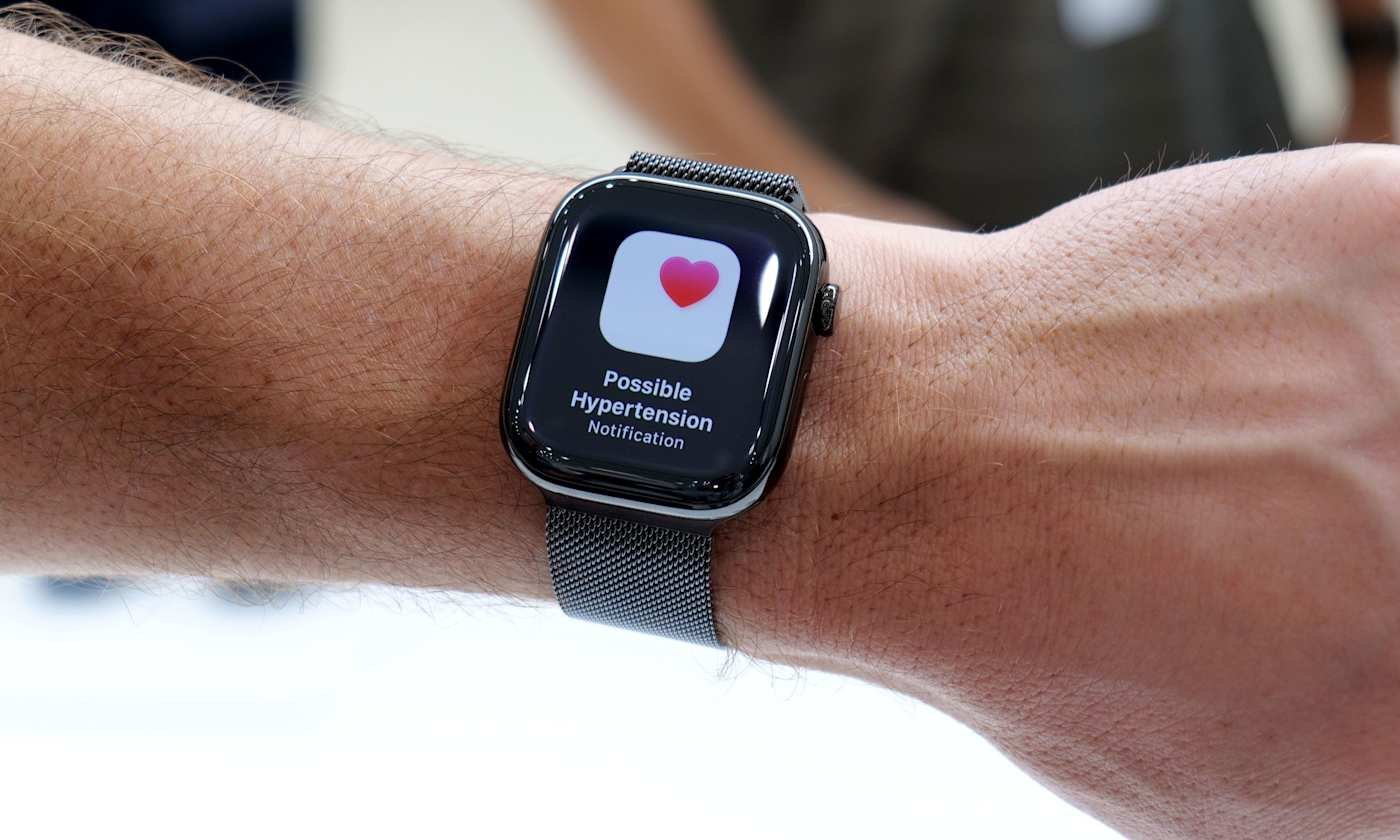
Understanding Hypertension Alerts on Apple Watch
Apple continues to enhance the Apple Watch’s health capabilities, extending from basic fitness monitoring to proactive insights into potential health issues. The latest feature, hypertension alerts, notifies users of possible elevated blood pressure trends over time. Although the Apple Watch does not measure blood pressure directly, it analyzes collected data to spot patterns that warrant a discussion with a healthcare provider. This guide covers the purpose of these alerts, their functionality, and steps to activate and manage them.
What Hypertension Alerts Entail
Hypertension alerts detect prolonged trends that suggest rising blood pressure levels. The device evaluates 30 days of health data, such as heart rate, activity levels, and other details from the Health app, to identify sustained shifts linked to hypertension indicators. Upon detecting such a pattern, the Apple Watch sends a notification to the user. These alerts aim to prompt awareness rather than provide a diagnosis or replace clinical tests. Apple designs them for individuals without a prior hypertension diagnosis to encourage early vigilance.
Eligibility for Hypertension Alerts
To access this feature, users need an Apple Watch Series 9 or later, or Apple Watch Ultra 2 or later, paired with an iPhone 11 or newer. It requires the latest watchOS and iOS versions for optimal algorithm performance. Eligible users must be at least 22 years old, not pregnant, and free of a hypertension diagnosis. Enabling Wrist Detection on the watch is essential. For accurate alerts, wear the device consistently, including during sleep if tracking is active, and update personal details like age, sex, height, and weight in the Health app. Alerts emerge after sufficient data accumulation, not right away.
Steps to Activate Hypertension Alerts
Users enable hypertension alerts via the Health app on their paired iPhone, not directly on the watch. The app verifies undiagnosed status and reviews key health information for better trend accuracy. Begin by opening the Health app on the iPhone. Tap the profile icon in the upper corner, then select Health Checklist under Features. Choose Hypertension Notifications, confirm age and hypertension status, and proceed through the prompts explaining the feature. Tap Done to complete setup. The system then operates in the background without daily intervention.
Managing and Reviewing Alerts
Once active, alerts appear on both the Apple Watch and iPhone, describing detected trends and suggesting next steps. Customize delivery through the Health app’s notification settings, opting for lock screen, Notification Center, or time-sensitive options on the watch. Access related data and educational content anytime in the Health app, which provides context without specific blood pressure values.
Benefits of Hypertension Alerts
High blood pressure often progresses silently without early symptoms, evading detection until routine exams. These alerts highlight subtle changes, potentially leading to timely doctor visits, home monitoring, or lifestyle adjustments in diet, exercise, and sleep. The Apple Watch supports tracking these factors, offering valuable insights for health discussions. View alerts as guides, not confirmations, since no direct measurements occur.
Responding to an Alert
An alert signals the need for increased cardiovascular awareness, not an emergency. Follow up with home cuff measurements or a professional consultation for accurate assessment and personalized advice. Consider lifestyle influences like activity, sleep, stress, and nutrition, which the Apple Watch can monitor to inform these conversations.
Key Limitations
Hypertension alerts may not be available everywhere due to regulatory factors. They demand regular device use for reliable data. Critically, without direct blood pressure sensing, they rely on trends and correlations, serving as supplements to, not replacements for, medical tools and expert care.